

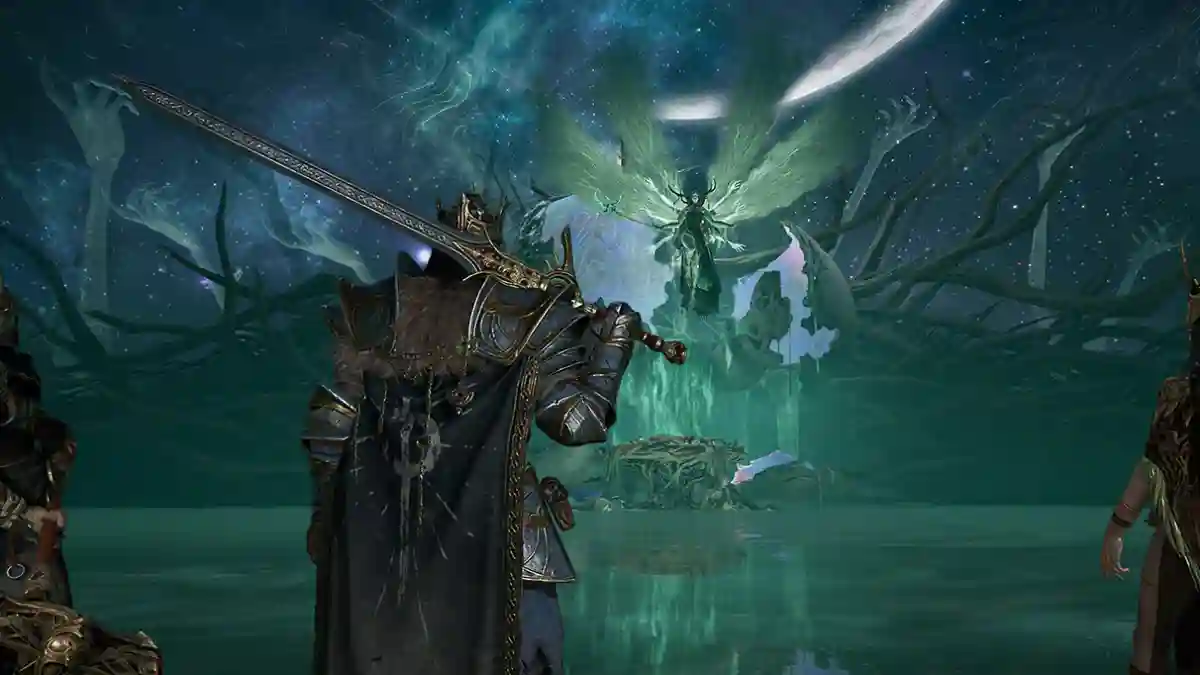
Mistfall Hunter is a dark fantasy action game developed by Bellring Games for PC.
The game combines Souls-like combat, dungeon exploration, loot hunting, and extraction-based mechanics in a world devastated by a supernatural catastrophe.
Players venture into dangerous regions filled with deadly monsters, valuable treasures, and rival hunters, where survival is just as important as combat.

AI receipt scanner & cash envelopes. 100% private.
Your primary objective is to explore these hazardous areas, gather valuable loot, and successfully extract before losing everything you’ve collected.
Throughout your journey, you’ll face powerful enemies and challenging bosses while working to restore the shattered Web of Fate.
In this guide, you’ll learn how to fix stuttering, lagging, freezing, and FPS drops in Mistfall Hunter on PC.
How to Fix Mistfall Hunter Stuttering, Lagging, Freezing, FPS Drop on PC
To fix stuttering, lagging, freezing, and FPS drops in Mistfall Hunter on PC, here are some of the most effective solutions you can try.
The developers recently shared several recommended settings adjustments in the Steam discussions to help stabilize performance and reduce common issues such as stuttering, lag, freezing, and FPS drops.
1. Turn Off Ray Tracing (Main Fix)
- Launch Mistfall Hunter
- Go to Settings → Graphics
- Find Ray Tracing and set it to Off/Disabled
2. Change DLSS to FSR
- Launch Mistfall Hunter
- Go to Settings → Graphics
- Find the Upscaling/Super Resolution option
- Select FSR instead of DLSS
3. Turn Off NVIDIA Smooth Motion
- Open NVIDIA App (from Start menu or desktop)
- Go to Graphics → Program settings
- Select Mistfall Hunter from the game list
- Scroll down to Driver settings
- Find Smooth Motion and click Disable/Off
- Restart the game
4. Cap Your Frame Rate
- Launch Mistfall Hunter
- Go to Settings → Graphics
- Find the Frame Rate Limit option
- Set to 60 FPS or 120 FPS
5. Lower Image Quality
- Launch Mistfall Hunter
- Go to Settings → Graphics (or Video)
- Find Quality Preset or Graphics Quality dropdown
- Change from Epic → High or Medium
- If no preset option, manually adjust these settings:
- Optional: Drop Resolution from 4K to 1080p if still struggling
- Click Apply → Restart game
