

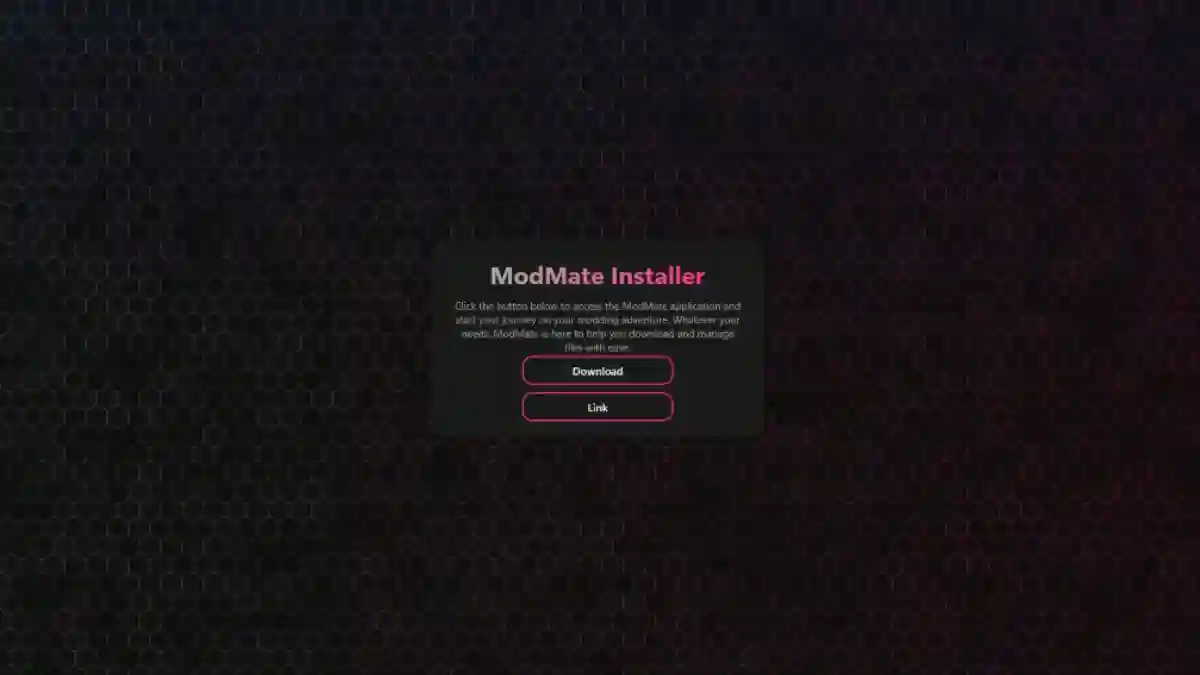
ModMate is a mod management tool available on the Microsoft Apps Store.
It allows users to install and manage custom add-ons, texture packs, enchantment mods, and other modifications for Minecraft (Xbox / Bedrock Edition).
However, many users are facing the “Not Available Separately” or “Not Sold Separately” error when trying to install the special (modded) version of Minecraft through ModMate.

AI receipt scanner & cash envelopes. 100% private.
This is usually a common issue related to the Xbox/Microsoft Store side.
In this post, you will learn how to fix the “Not Available Separately” or “Not Sold Separately” install issue for ModMate Minecraft, including a complete step-by-step guide.
What the error means
The Xbox Store sometimes treats the ModMate-linked “special Minecraft version” as if it isn’t a separate purchase, which blocks the installation—even if you already own the regular version of Minecraft.
This issue is not fixed by uninstalling Xbox Live or changing account settings.
Instead, you can work around it by running the normal version of Minecraft in the background, which helps the store recognize your ownership and allows the special build to install.
How to Fix “Not Available Separate” or “Not Sold Separately” Install Issue for ModMate Minecraft
Follow the steps below to fix this issue.
Step 1: Install normal Minecraft again
- Open the Microsoft Store on your Xbox.
- Search for “Minecraft”.
- Download and install it normally.
- Works even if it says “owned”.
Step 2: Launch normal Minecraft once
- Open the normal Minecraft app.
- Wait for the main menu to load.
- Return to the Xbox home screen.
- Keep Minecraft running in the background.
Step 3: Launch the special version via ModMate
- Go back to ModMate (PC or phone).
- Find the special Minecraft build (“Not Available Separate”).
- Click Load → Select UWP app.
- Open the Microsoft Store page.
- Click the now-clickable green Install button.
Step 4: Install the special build
- Click Install on the special version.
- You’ll now have two Minecraft tiles:
- Original normal Minecraft
- ModMate special Minecraft (different icon/label)
Step 5: Uninstall the original Minecraft
- Go to the original/normal Minecraft app.
- Uninstall it completely.
- Keep only the ModMate special version.
Step 4: Update and test
- Launch the special Minecraft from the home screen.
- If it prompts for an update, let it finish.
- Game will load with mods & custom add-ons (enchants, textures, etc.).
